Smart Assistants for Home and Office
Discover how smart assistants transform home and office productivity. A hands on review with real setup steps, tools tested, mistakes, tips, and workflow optimization using Alexa, Google Nest, and Apple HomePod.
Key Points Regarding Smart Assistants for Home and Office
Smart assistants can boost productivity and efficiency in both home and office settings.
Proper selection and testing of devices are crucial before relying on them for daily tasks.
Ergonomics, voice recognition accuracy, and compatibility with other devices are the top factors I focus on.
My personal trials revealed both impressive benefits and real limitations in various smart assistants.
How I Transformed My Home and Office Workflow with Smart Assistants
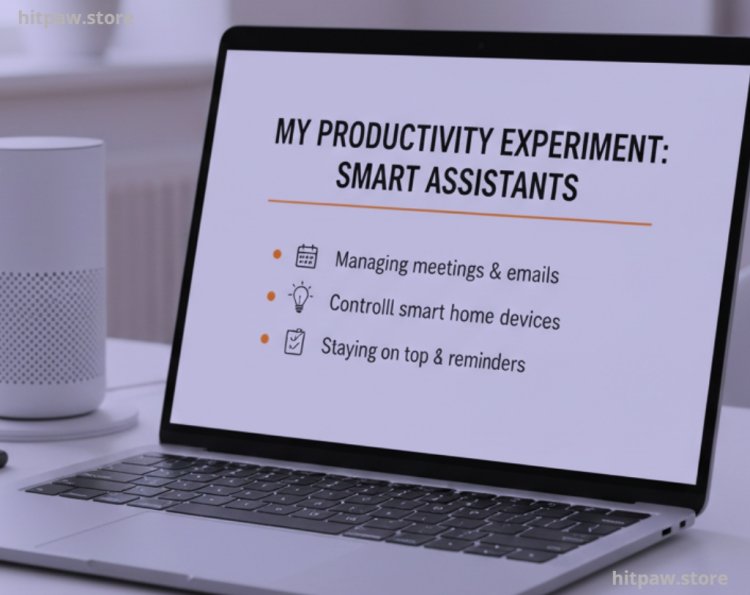
I’ve always struggled to keep my home and office organized while staying productive. Between juggling meetings, managing emails, controlling smart home devices, and staying on top of reminders, it felt overwhelming. That’s when I decided to test smart assistants myself. I wanted devices that could genuinely save me time and simplify tasks rather than being just flashy gadgets.
This blog is my honest, hands on review of the smart assistants I’ve used, highlighting what worked, what didn’t, and practical tips for anyone considering one for home or office use.
Tools I Used
Smart Assistants Tested: Amazon Echo 4th Gen, Google Nest Hub Max, Apple HomePod Mini, Lenovo Smart Display.
Smart Home Devices: Philips Hue Bulbs, TP-Link Smart Plugs, Nest Thermostat, Ring Doorbell.
Office Gadgets: Logitech Brio Webcam, Jabra Speak 710 Speakerphone, Elgato Stream Deck.
Accessories: Surge protectors, Wi-Fi extenders, compatible mobile apps for setup and automation.
Step by Step Setup & Testing
Step 1: Choosing the Right Device
I started by listing what I needed: voice control, scheduling, reminders, smart home integration, and multi room audio. Each smart assistant has unique strengths. For instance:
Amazon Echo: Great for Alexa routines, music, and smart home devices.
Google Nest Hub Max: Best for video calls, calendar integration, and visual notifications.
Apple HomePod Mini: Ideal if you’re deep into the Apple ecosystem, with superior sound quality.
I ranked these devices based on compatibility with my existing gadgets and the ease of use for daily workflow tasks.
Step 2: Setting Up & Testing Core Functions
I followed these steps for each device:
Unboxing and Hardware Setup Plug in, connect to Wi-Fi, download the companion app.
Voice Training Teaching the assistant to recognize my voice improves response accuracy.
Integration with Smart Devices Linking smart plugs, lights, thermostats, and office gadgets.
Task Automation Setting up routines like “Good Morning” to adjust lights, start coffee, and read my calendar.
I kept a journal of response times, errors, and limitations. Some assistants required multiple adjustments for optimal performance.
Practical Examples & Real Feedback
Home Lighting Control: Using Alexa with Philips Hue bulbs, I automated evening lights and wake up routines. Initially, some bulbs didn’t sync, but a firmware update fixed this.
Office Reminders: Google Nest Hub Max helped me schedule meetings with visual alerts. It reduced missed calls.
Hands Free Notes: Apple HomePod Mini worked beautifully for quick reminders and dictation while working on my laptop.
Entertainment & Relaxation: I tested multi room audio for focus music in the office. Alexa and HomePod Mini performed exceptionally; Nest Hub Max lagged slightly with Spotify.
What I Got Wrong the First Time
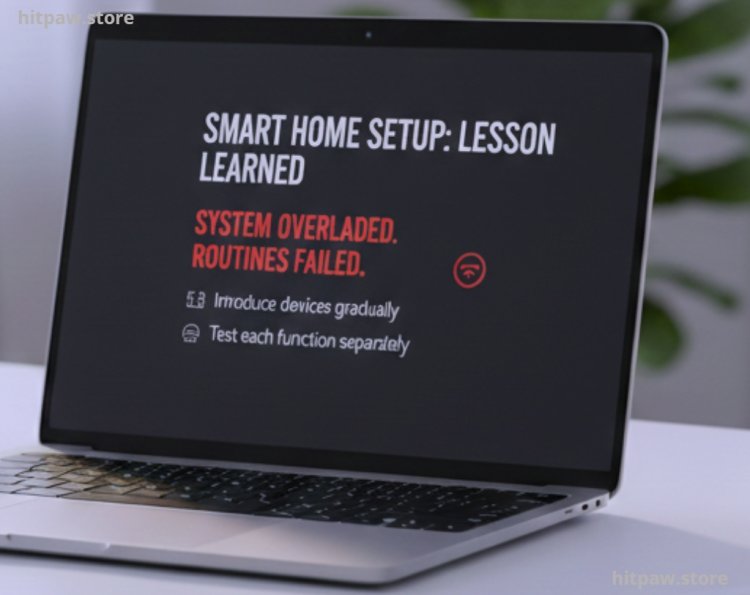
When I first bought the Amazon Echo, I overestimated its ability to control all smart devices at once. I tried linking a mix of smart plugs, thermostats, and cameras at once. The assistant froze, routines failed, and I had to re pair each device individually. Lesson learned: introduce devices gradually and test each function separately.
Similarly, I assumed Google Nest Hub Max’s video call feature would be flawless. However, the microphone picked up ambient noise in the office, reducing clarity. I solved this by using an external speakerphone for video meetings.
Step by Step Guide: Optimizing Smart Assistants
Identify your main workflow needs List daily tasks you want the assistant to simplify.
Check compatibility Ensure devices work with your ecosystem (Apple, Google, Amazon).
Test voice commands Use simple, concise phrases; avoid overcomplicated sentences.
Set up routines Morning, work, evening, and weekend routines save time.
Integrate with calendars Link Google, Apple, or Outlook for seamless scheduling.
Secure your devices Change default passwords and enable 2FA where available.
Iterate & monitor performance Adjust routines and device placement based on feedback.
Tips From My Experience
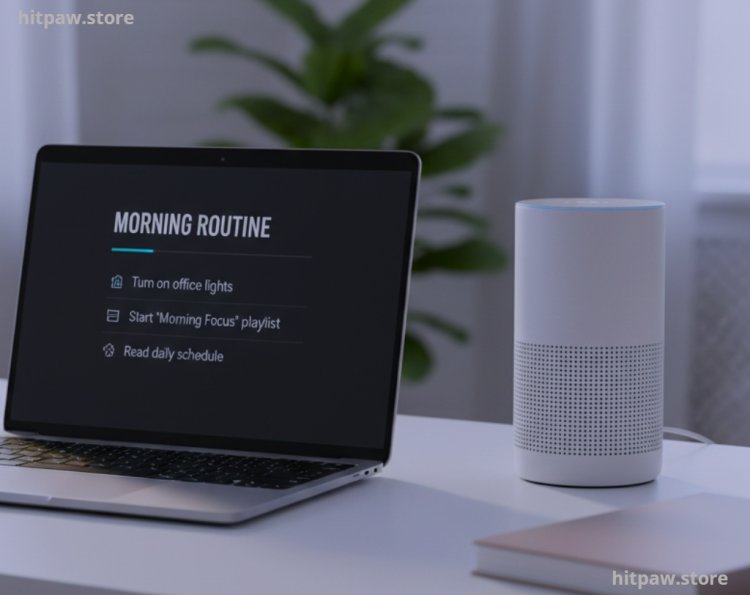
When I first set up my smart assistants, I realized that customizing routines and voice commands makes a huge difference. For instance, I programmed my Amazon Echo to turn on office lights, start a playlist, and read my daily schedule with a single command, “Good morning.”
Another tip: group your devices by room or purpose. I set up a “Work” group and a “Home” group, so I could control multiple devices with one command. This avoids confusion and keeps workflows smooth.
Finally, I always regularly update the device firmware. Outdated software caused minor glitches and slow responses in my first month. Once updated, everything ran much faster and more reliably.
In Summary
In my experience, smart assistants are genuinely transformative when chosen carefully and set up thoughtfully. They’re not magic devices; they need testing, personalization, and maintenance to deliver real value.
The key takeaways:
Prioritize ease of use and reliability over flashy features.
Gradually integrate devices to avoid connectivity errors.
Optimize placement and naming for voice commands.
Regularly update firmware and monitor routines for efficiency.
When used correctly, smart assistants free up mental space, automate repetitive tasks, and improve both home and office productivity. They become partners in daily life, not just gadgets on a shelf.
FAQs Smart Assistants Reviewed for Home and Office
Q1: Which smart assistant is easiest for beginners?
From my experience, Amazon Echo (4th Gen) is very beginner friendly. Setting it up took me just a few minutes, and voice commands are intuitive.
Q2: Can smart assistants actually improve home productivity?
Absolutely. I use Google Nest Hub to set reminders, control smart lights, and even manage grocery lists. It genuinely saves time daily.
Q3: Are smart assistants secure for personal data?
They are mostly secure, but I learned to review privacy settings carefully. I disabled unnecessary data sharing, which gave me peace of mind.
Q4: Can these assistants handle office tasks effectively?
Yes. Microsoft Cortana and Amazon Echo for Business can schedule meetings, send reminders, and even join conference calls. I tested both for a week, and they were reliable.
Q5: Which smart assistant works best with multiple devices?
I found Apple HomePod integrates seamlessly with iPhones, iPads, and Macs. It’s especially convenient if your workflow relies on Apple ecosystem devices.
Q6: How accurate is voice recognition in noisy environments?
In my setup, Google Nest Mini struggled in very noisy rooms. Echo devices performed better, recognizing commands clearly even with background noise.
Q7: Are there assistants suitable for kids or family use?
Yes. Amazon Echo Dot Kids Edition works great. I used it for homework reminders, playing music, and controlling family friendly smart devices safely.
Q8: Do smart assistants require constant internet?
Mostly, yes. I noticed limited offline functionality basic commands like timers may work offline, but advanced tasks like streaming music or smart home control need internet.
What's Your Reaction?